# ExploreLearning Apps
Gizmos, Reflex, Frax, Science4Us
# How to Assign Product Access to Students
Student accounts are automatically created and rostered in ExploreLearning (*Reflex, Frax, etc.*) by Clever. However, new students are not assigned product access by default and will initially be unable to login to ExploreLearning app(s) until they are given an assignment.
### **Instructions**
---
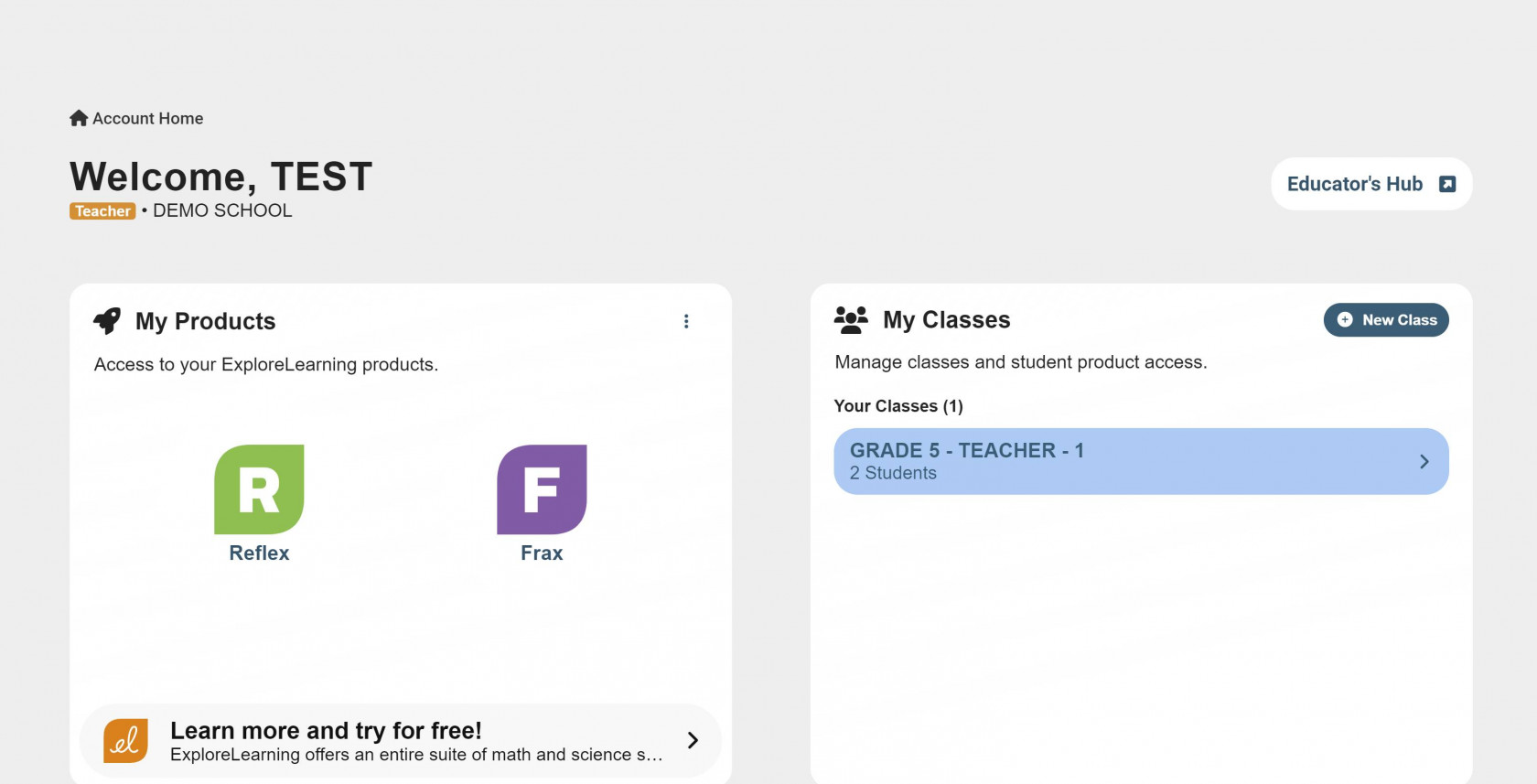
**1**. Select your class from the ExploreLearning landing page.
| [](https://wiki.sumnersd.org/uploads/images/gallery/2024-01/nzFETJYCNbJsqsDP-0.jpg) |
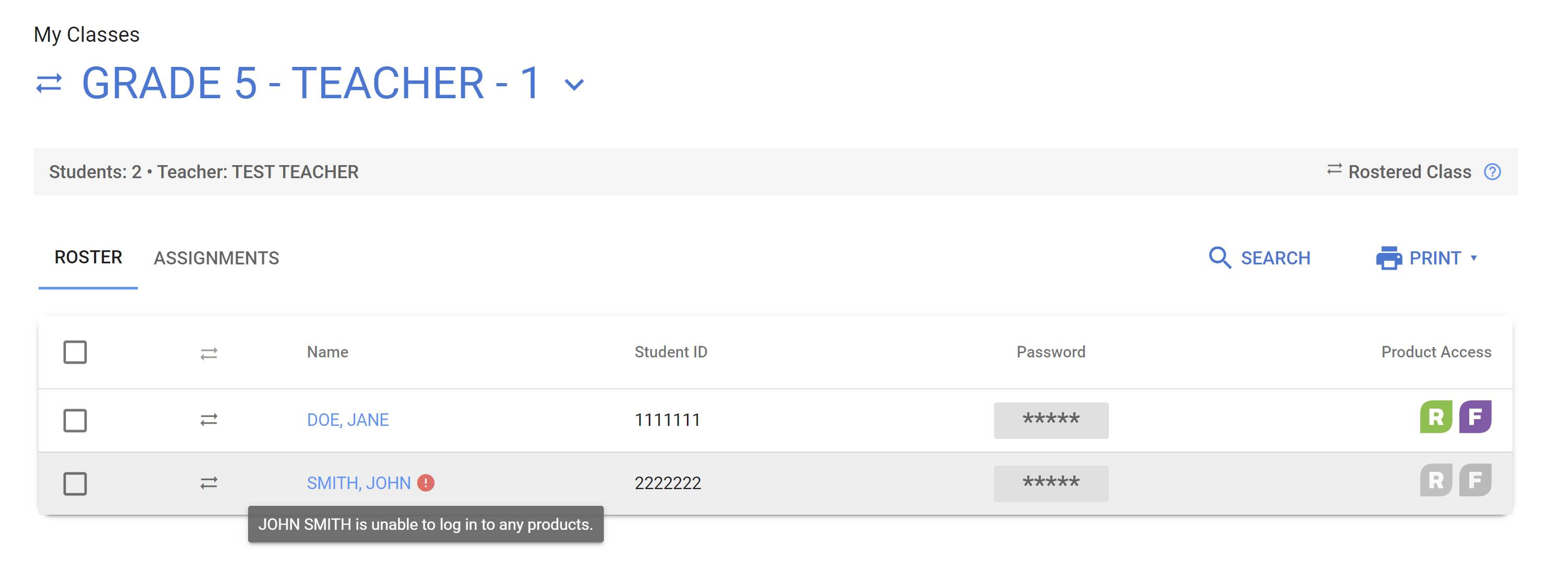
**2**. Locate the student(s) in your roster who don't have product access - they are indicated by a red exclamation point next to their name.
| [](https://wiki.sumnersd.org/uploads/images/gallery/2024-01/qNVCLSl5fnq91u3c-1.jpg) |
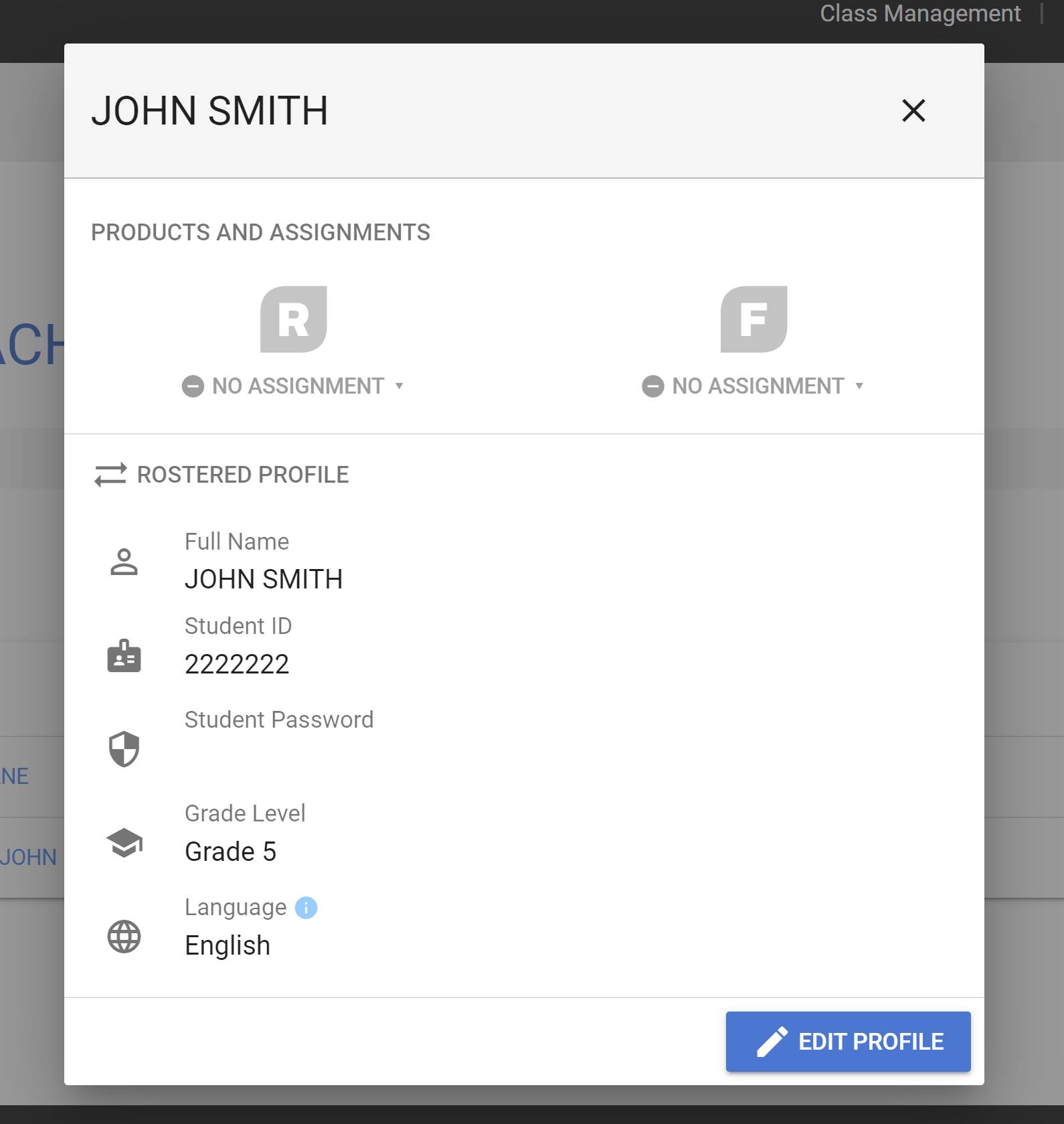
**3**. Click on the student's name to bring up their profile, then click on either of the greyed out product icons at the top.
| [](https://wiki.sumnersd.org/uploads/images/gallery/2024-01/yT3MZwfhLovpD5gy-2.jpg) |
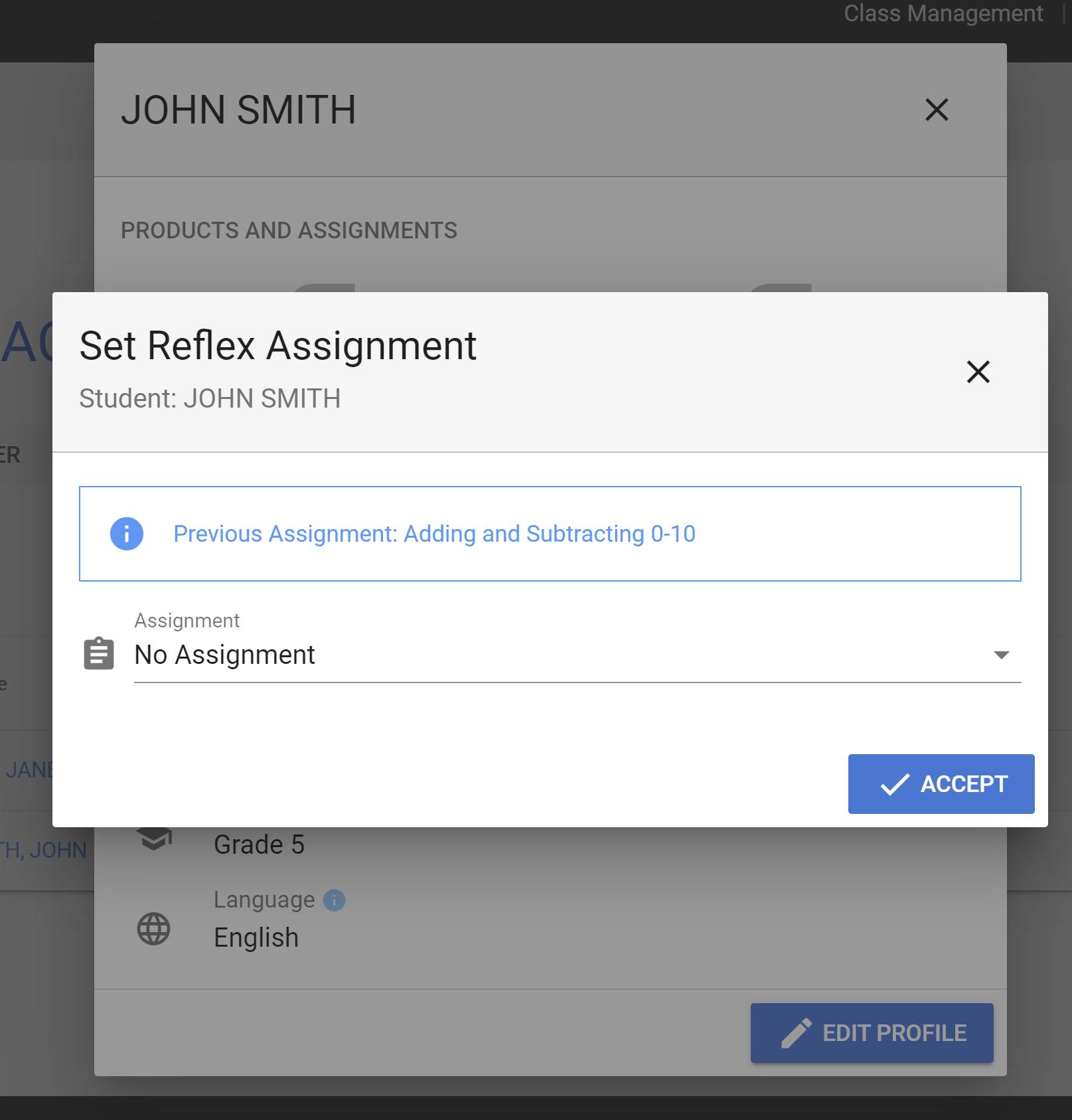
**4**. A new window will appear. Click on the assignment dropdown and select an appropriate option for the student. When you're finished, click the Accept button to save the product assignment for this student.
| [](https://wiki.sumnersd.org/uploads/images/gallery/2024-01/q6uGu0GKRdaOGBr1-3.jpg) |
**5**. Repeat steps 3-4 as necessary for other products which haven't been assigned to the student yet.
### **Reference**
---
- [https://explorelearning.my.site.com/help/s/article/Provide-Change-Student-Product-Assignments](https://explorelearning.my.site.com/help/s/article/Provide-Change-Student-Product-Assignments)
- [https://explorelearning.my.site.com/help/s/article/Enabling-Reflex-Frax-and-Science4Us-for-your-Student](https://explorelearning.my.site.com/help/s/article/Enabling-Reflex-Frax-and-Science4Us-for-your-Student)
- [https://explorelearning.my.site.com/help/s/article/Reflex-Rostering-FAQ](https://explorelearning.my.site.com/help/s/article/Reflex-Rostering-FAQ)