# How to Login to Zoom

### From the Web

---

**1**. Log in to [RapidIdentity](https://sblsd.us001-rapididentity.com/)

**2**. Click the Zoom application on the Dashboard

<table border="1" id="bkmrk--0" style="border-collapse: collapse; width: 20.6173%;"><colgroup><col style="width: 100%;"></col></colgroup><tbody><tr><td>[![image.png](https://wiki.sumnersd.org/uploads/images/gallery/2023-10/scaled-1680-/m9lgcwZOfIWwRAau-image.png)](https://wiki.sumnersd.org/uploads/images/gallery/2023-10/m9lgcwZOfIWwRAau-image.png)

</td></tr></tbody></table>

<p class="callout info">If you don't see Zoom bookmarked on your RapidIdentity dashboard, open the Applications module and select it from the list of available apps</p>

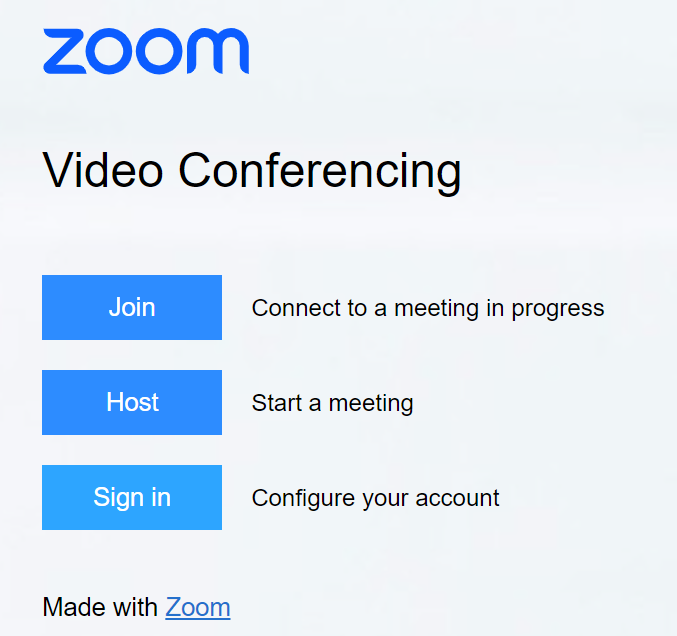
**3**. Click the **Sign In** button

<table border="1" id="bkmrk--1" style="border-collapse: collapse; width: 60.3704%;"><colgroup><col style="width: 100%;"></col></colgroup><tbody><tr><td>[![image.png](https://wiki.sumnersd.org/uploads/images/gallery/2023-10/scaled-1680-/5bwHgKg7gqU6AGzF-image.png)](https://wiki.sumnersd.org/uploads/images/gallery/2023-10/5bwHgKg7gqU6AGzF-image.png)

</td></tr></tbody></table>

### From the Zoom App

---

**1**. Open the Zoom application

**2**. Click the **Sign In** button

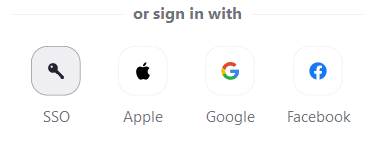
**3**. Click the **SSO** button under the *"or sign in with"* section

<table border="1" id="bkmrk--3" style="border-collapse: collapse; width: 36.7901%; height: 129px;"><colgroup><col style="width: 100%;"></col></colgroup><tbody><tr><td>[![image.png](https://wiki.sumnersd.org/uploads/images/gallery/2023-01/scaled-1680-/VcVzEUxtuSa6gghZ-image.png)](https://wiki.sumnersd.org/uploads/images/gallery/2023-01/VcVzEUxtuSa6gghZ-image.png)

</td></tr></tbody></table>

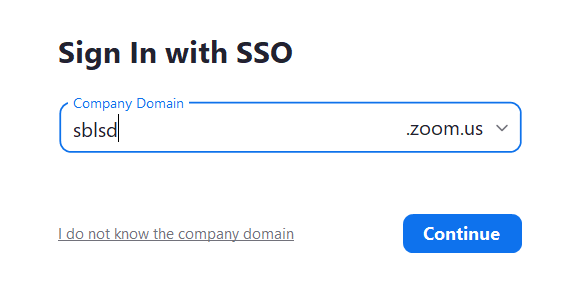
**4**. Enter `sblsd` in the **Company Domain** field

<table border="1" id="bkmrk--4" style="border-collapse: collapse; width: 54.5679%; height: 261px;"><colgroup><col style="width: 100%;"></col></colgroup><tbody><tr><td>[![image.png](https://wiki.sumnersd.org/uploads/images/gallery/2023-01/scaled-1680-/4p8sjnONk0OADmhO-image.png)](https://wiki.sumnersd.org/uploads/images/gallery/2023-01/4p8sjnONk0OADmhO-image.png)

</td></tr></tbody></table>

**5**. Click the **Continue** button

**6**. Your browser will launch in order to authenticate using SSO. If you are not already logged in to RapidIdentity, you will be prompted to log in.

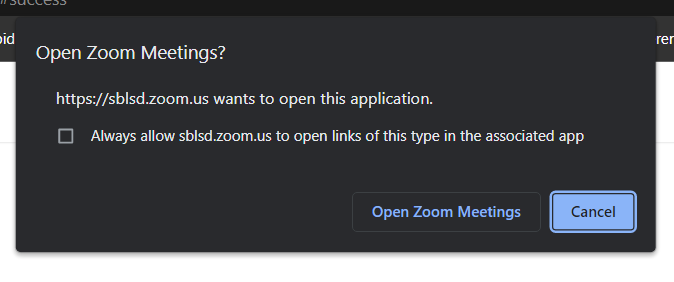
**7**. When prompted by your browser, click the **Open Zoom Meetings** button

<table border="1" id="bkmrk--5" style="border-collapse: collapse; width: 68.1481%; height: 226px;"><colgroup><col style="width: 100%;"></col></colgroup><tbody><tr><td>[![image.png](https://wiki.sumnersd.org/uploads/images/gallery/2023-01/scaled-1680-/mmiMV571kUuaT3PE-image.png)](https://wiki.sumnersd.org/uploads/images/gallery/2023-01/mmiMV571kUuaT3PE-image.png)

</td></tr></tbody></table>