# How to Print Login QR Badges For Students
**These instructions have been migrated to the Technology Services department's new documentation platform. Please [refer to this link](https://sumnersd.getoutline.com/s/abe5eea0-fa4e-4a5b-b1fc-6a1f946373aa/doc/generating-login-qr-badges-x05OkGeTwN) for up-to-date instructions and information regarding printing login QR badges. The content on this page is no longer maintained and will be removed in the near future.**
#### Requirements
---
1. One of the following RapidIdentity roles: `District QR Badge Manager`, `Building Account Manager`
#### Instructions
---
**1**. Log in to [RapidIdentity](https://sblsd.us001-rapididentity.com/)
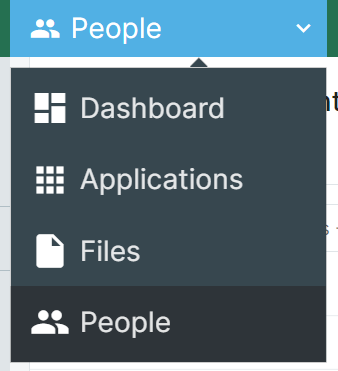
**2**. Navigate to the **People** module
| [](https://wiki.sumnersd.org/uploads/images/gallery/2023-08/FrsYR6RrruCBXtNm-image.png)
|
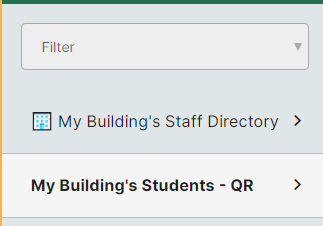
**3**. Select one of the following profile views depending on your access level: `All Students - QR` or `My Building's Students`
| [](https://wiki.sumnersd.org/uploads/images/gallery/2023-08/VEj877YGMBBoUlY6-image.png)
|
**4**. Search for the student you want to print a QR badge for. You can search by name, username, email, grade level, or student ID.
Wildcard searches are supported using the `*` character. For example:
- To search for students who have the word "Tim" in their name, search for `*tim*`
- To search for students whose name begins with "Tim", search for `tim*`
- To search for students whose name ends with "othy", search for `*othy`
All other searches must be an **exact** match on a field. Searching for `tim` will not return any students named "Timothy".
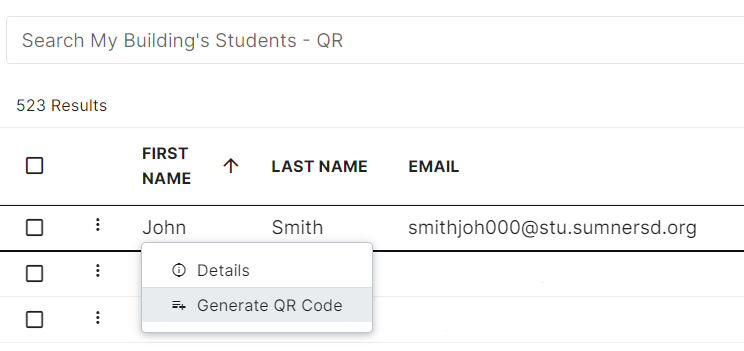
**5**. Right click on the student result and click the **Generate QR Code** option from the context menu
| [](https://wiki.sumnersd.org/uploads/images/gallery/2023-08/tJHAf9wxHDc96CPG-image.png)
|
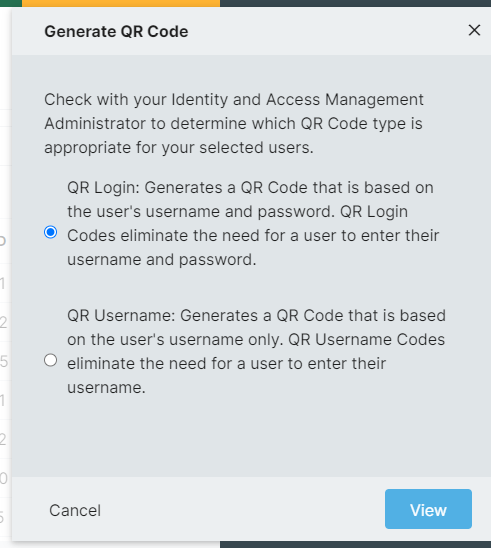
**6**. Select the **QR Login** option, then click the **View** button
| [](https://wiki.sumnersd.org/uploads/images/gallery/2024-02/9Eqz6ZFSzoRmXvq9-image.png)
|
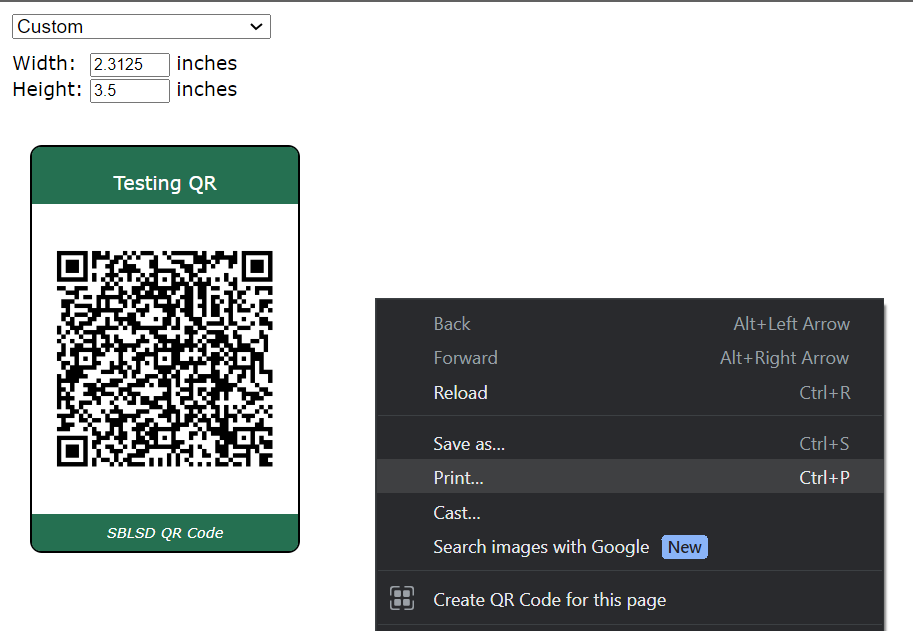
**7.** RapidIdentity will open a new page with the generated QR code. From here you can adjust the layout of the QR badge (*if needed*) and print it.
| [](https://wiki.sumnersd.org/uploads/images/gallery/2023-08/8IpcKxndw6WqiCqS-image.png)
|