**These instructions have been migrated to the Technology Services department's new documentation platform. Please [refer to this link](https://sumnersd.getoutline.com/s/abe5eea0-fa4e-4a5b-b1fc-6a1f946373aa/doc/how-to-set-the-keyboard-layout-to-english-us-99sXyFSHlG) to keep up with the most up-to-date instructions and information. The content on this page is no longer maintained and will be removed in the near future.**
**1)** While at the sign-in screen, click the system tray located in the bottom-right corner **2)** Click the Keyboard menu button **3)** Select the English (US) keyboard option [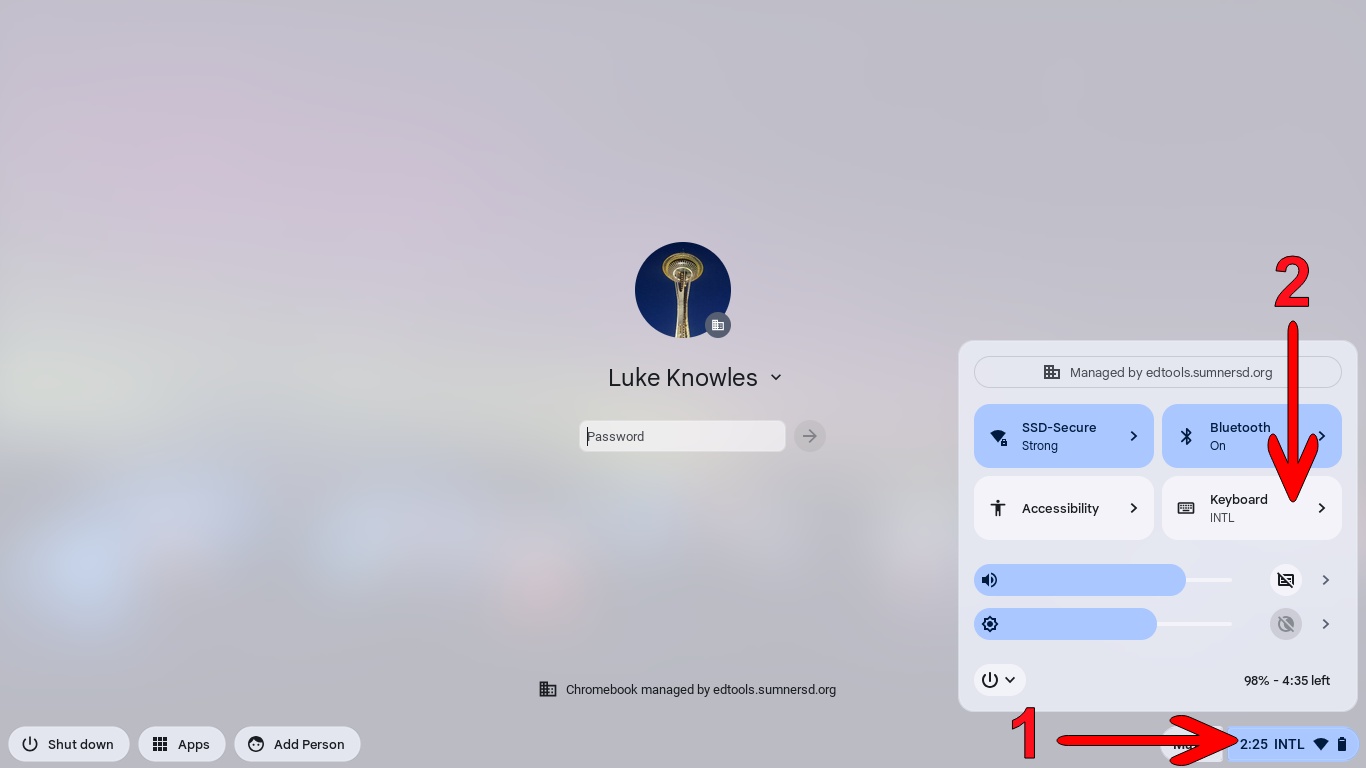](https://wiki.sumnersd.org/uploads/images/gallery/2024-05/iaeSWoRz97QRVtou-image-9.jpg) [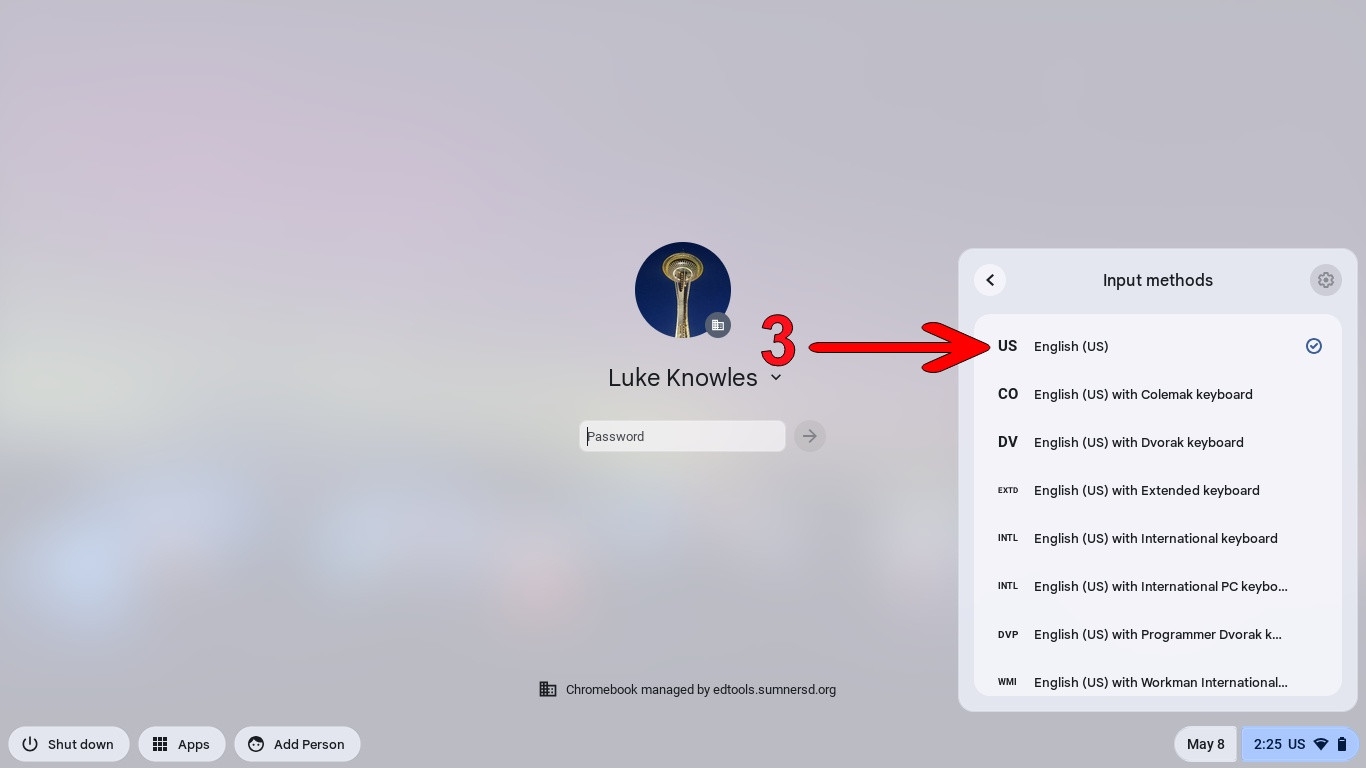](https://wiki.sumnersd.org/uploads/images/gallery/2024-05/bsc0CliVATj3MC44-image-10.jpg)It's easy to accidentally change the keyboard layout through shortcuts without even realizing it! If your Chromebook's keyboard layout gets changed back unintentionally, try pressing the `CTRL` + `Space` keys to swap between the 2 most recent layouts.