# How To Setup 2FA
**These instructions have been migrated to the Technology Services department's new documentation platform. Please [refer to this link](https://sumnersd.getoutline.com/s/abe5eea0-fa4e-4a5b-b1fc-6a1f946373aa/doc/mfa-Zyjp8eqFiQ) for up-to-date instructions and information regarding MFA. The content on this page is no longer maintained and will be removed in the near future.**
### **Two-Factor Authentication Methods**
---
The Technology Services department officially recommends the **TOTP** method for staff - we consider it the most balanced option in terms of security and convenience
| **Name** | **Description** | **Requirements** |
| **SMS** | A temporary code is delivered to your phone via text message | - A mobile phone
- A mobile phone number entered in your RapidIdentity profile
|
| **⭐ TOTP** (*time-based one-time password*) | A temporary code which is continuously generated by an app on your phone | - A mobile phone
- An authenticator app such as Google Authenticator installed on your phone
|
| **WebAuthn** | A USB security key which is plugged in to your device | - A physical hardware key, such as a YubiKey
|
### **How to Edit Your RapidIdentity Profile**
---
| **1**. Log in to [RapidIdentity](https://sblsd.us001-rapididentity.com/)
**2**. Click on your name in the top-right corner
**3**. Select **Profile Settings** from the dropdown
**4**. Click the **Edit** button
**5**. Make any changes according to the instructions for your preferred authentication method below
**6**. Click the **Save** button
| [](https://wiki.sumnersd.org/uploads/images/gallery/2024-05/szPC10qo6Wkgl0pS-wiki-mfa.gif) |
### **Authentication Method Setup Instructions**
---
#### **TOTP**
TOTP Instructions
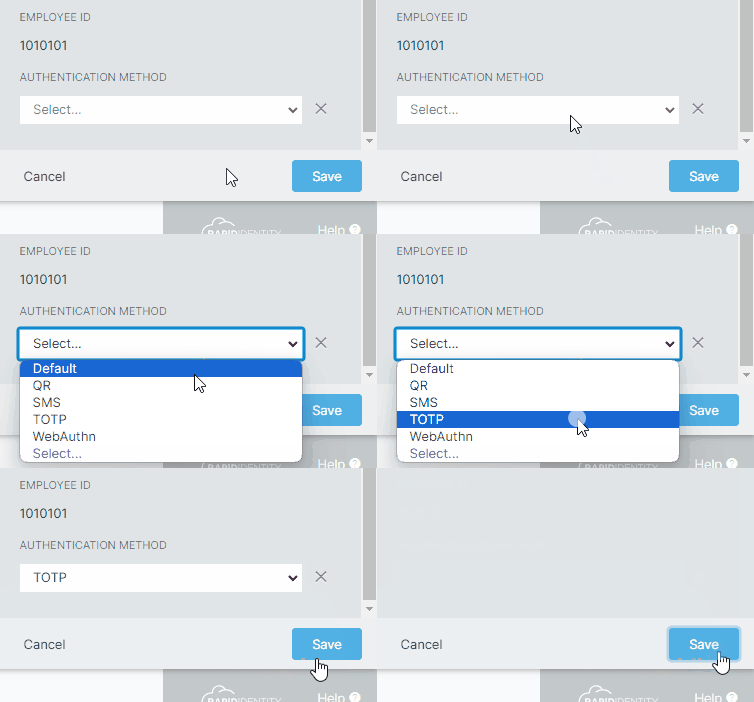
**1**. Select **TOTP** from the **Authentication Method** dropdown, then click the **Save** button
[](https://wiki.sumnersd.org/uploads/images/gallery/2024-05/gxX0J7nsLj74uThu-wiki-mfa-authentication-method-totp.gif)
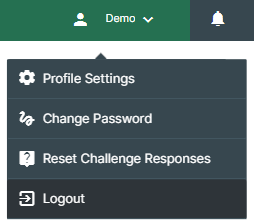
**2**. Log out of RapidIdentity, then log back in
[](https://wiki.sumnersd.org/uploads/images/gallery/2024-05/FbarjhgzL9gbRiHR-image.png)
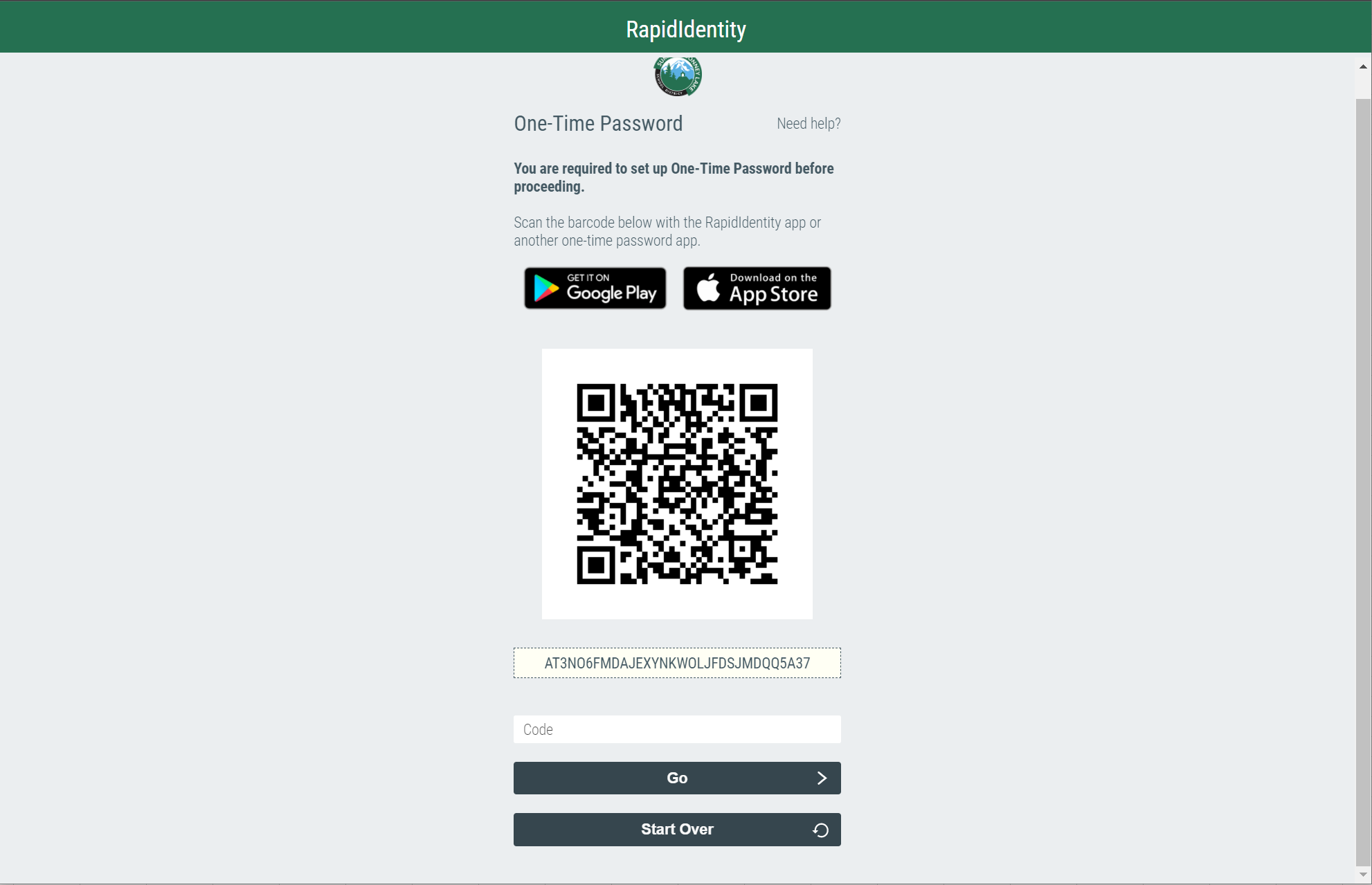
**3**. After entering your credentials, you will receive the following prompt
[](https://wiki.sumnersd.org/uploads/images/gallery/2022-08/image-1659645650053.png)
**4**. Open the Google Authenticator app on your phone. Select the **Scan a QR code** option, then scan the QR code displayed by RapidIdentity
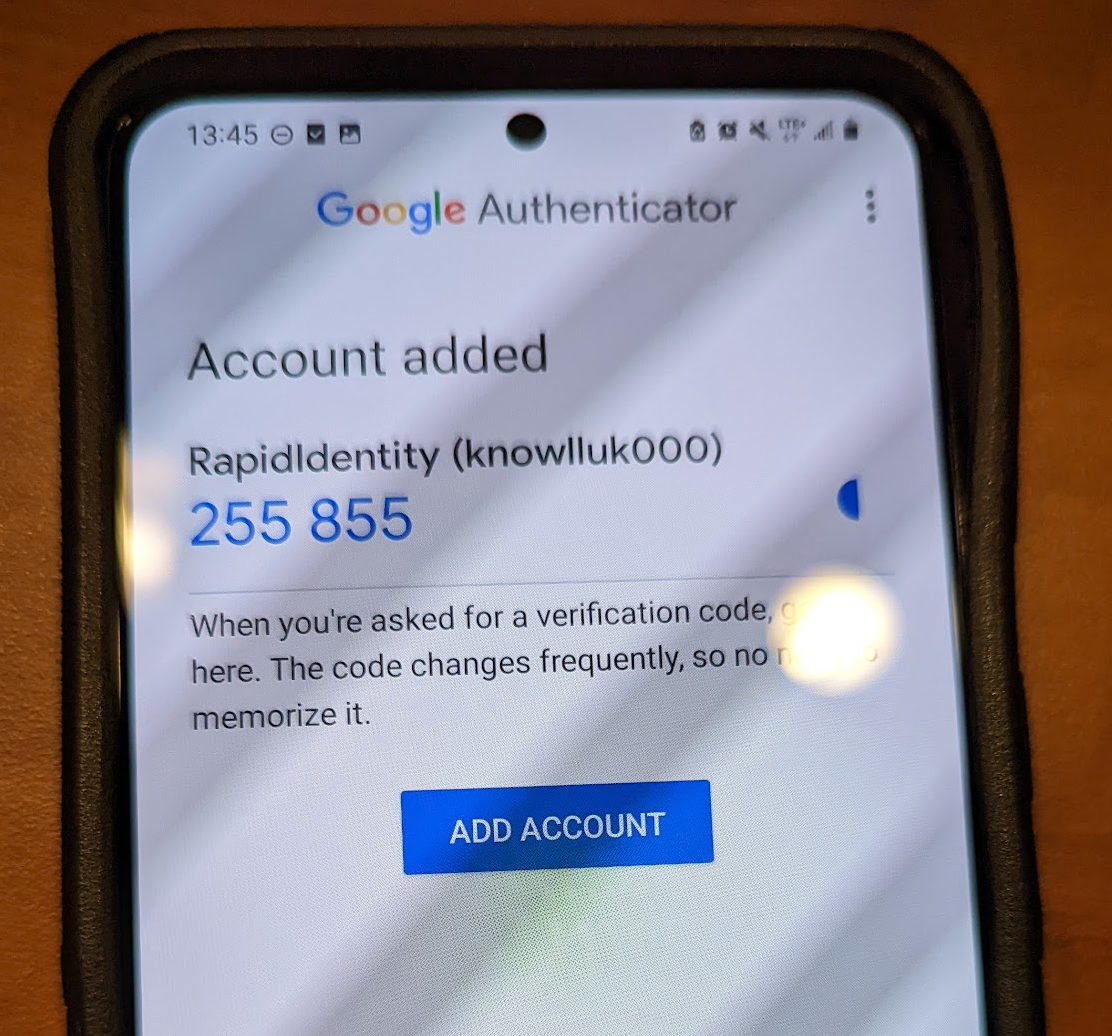
**5**. Google Authenticator will add the account and begin generating one time codes
[](https://wiki.sumnersd.org/uploads/images/gallery/2022-08/image-1659646073387.png)
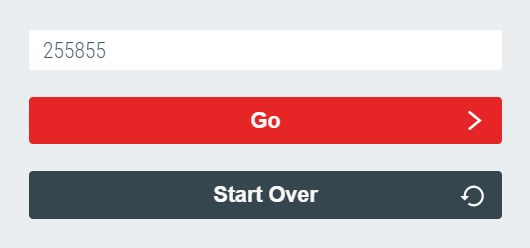
**6**. In RapidIdentity, type in the code with is currently shown by Google Authenticator, then click the **Go** button
[](https://wiki.sumnersd.org/uploads/images/gallery/2022-08/image-1659646158354.png)
**7**. Success! Now you will be prompted to enter a code from Google Authenticator when you log in to RapidIdentity
SMS Instructions
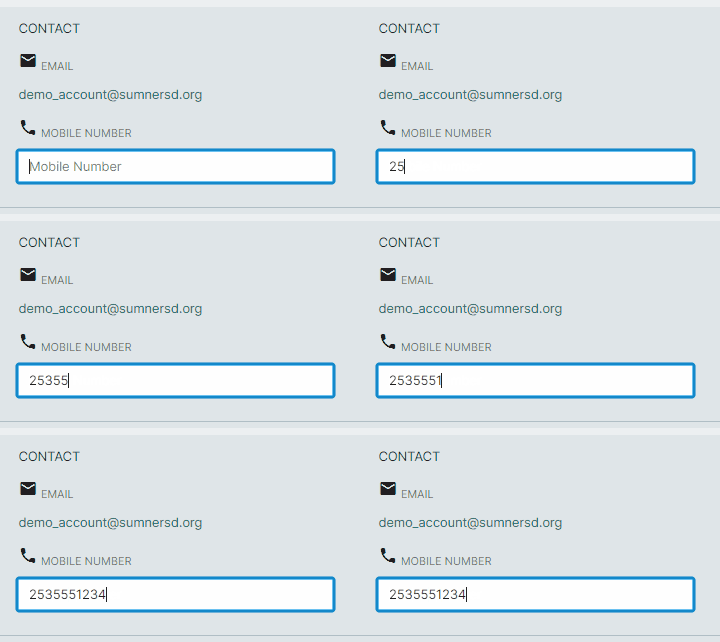
**1.** Update the **Mobile Number** field near the top of your profile. Ensure it is an up-to-date number where you will be receiving your one-time code.
[](https://wiki.sumnersd.org/uploads/images/gallery/2024-05/uxWiPSKdW6QvEoAd-wiki-mfa-sms-attribute.gif)
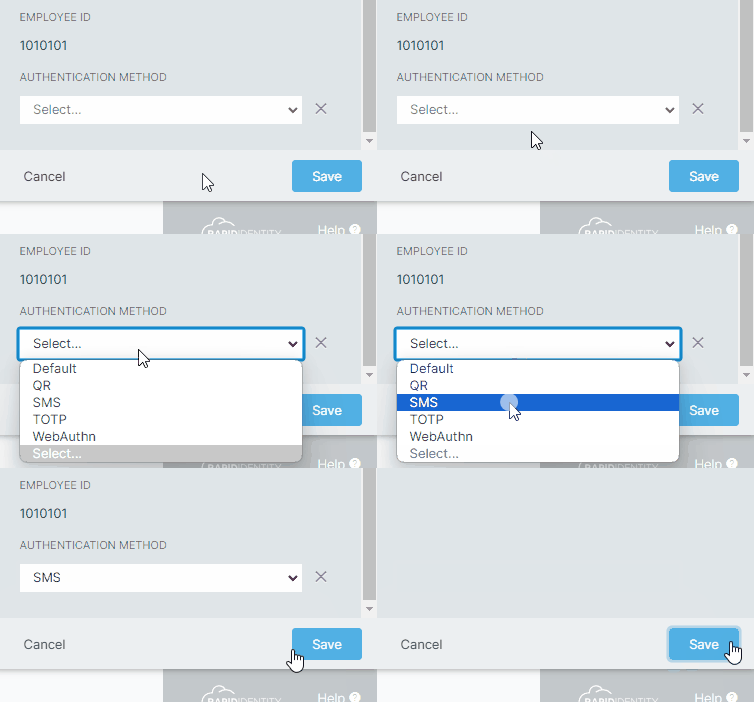
**2**. Select **SMS** from the **Authentication Method** dropdown, then click the **Save** button
[](https://wiki.sumnersd.org/uploads/images/gallery/2024-05/KtR1hCjd2xwCed0K-wiki-mfa-authentication-method-sms.gif)
**3**. Log out of RapidIdentity, then log back in
[](https://wiki.sumnersd.org/uploads/images/gallery/2024-05/FbarjhgzL9gbRiHR-image.png)
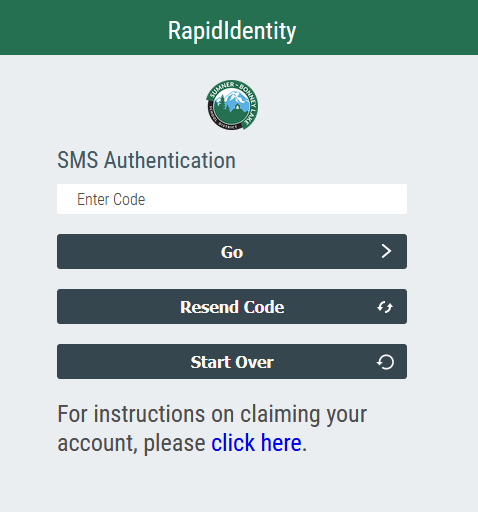
**4** . After entering your credentials, you will receive the prompt below
[](https://wiki.sumnersd.org/uploads/images/gallery/2022-11/FXBHCZvNIeT1l2az-image-1668810219130.png)
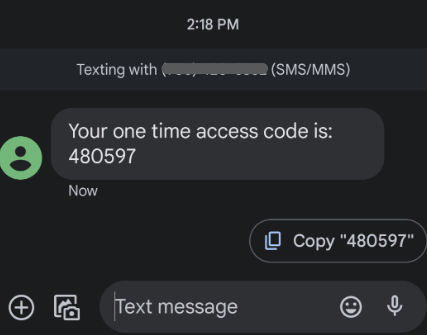
**5.** Open your cell phone and view your text messages. You should receive a message immediately after seeing the screen above. Enter the code provided into the SMS Authentication box shown previously. **This is a one-time access code that can not be reused. You will receive a new code every time you log in.**
[](https://wiki.sumnersd.org/uploads/images/gallery/2022-11/rXJqJ2YNsIaRbk3t-image-1668811850705.png)
**6**. Success! You will now be prompted for an access code when you log in to RapidIdentity
WebAuthn Windows Instructions
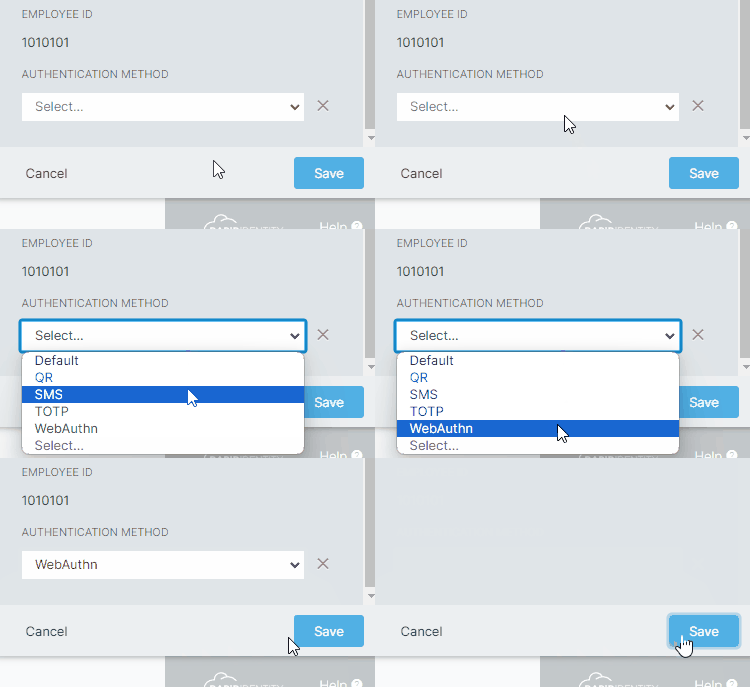
**1**. Select **WebAuthn** from the **Authentication Method** dropdown, then click the **Save** button
[](https://wiki.sumnersd.org/uploads/images/gallery/2024-05/PGKms22jeVxdoBzK-wiki-mfa-webauthn-attribute.gif)
**2**. Log out of RapidIdentity, then log back in
[](https://wiki.sumnersd.org/uploads/images/gallery/2024-05/FbarjhgzL9gbRiHR-image.png)
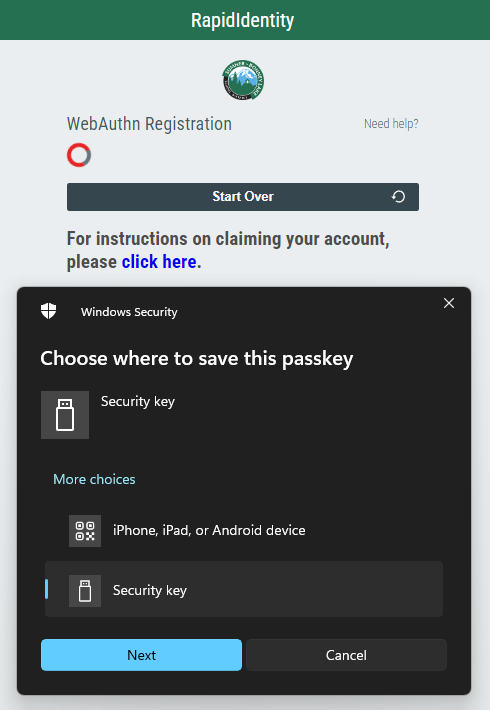
**3**. After entering your credentials you should receive the following prompt
[](https://wiki.sumnersd.org/uploads/images/gallery/2024-05/rB5P2Avq53xvi9Jf-mfa-webauthn-setup-prompt.png)
**4**. Plug your YubiKey in to a free USB port on your device
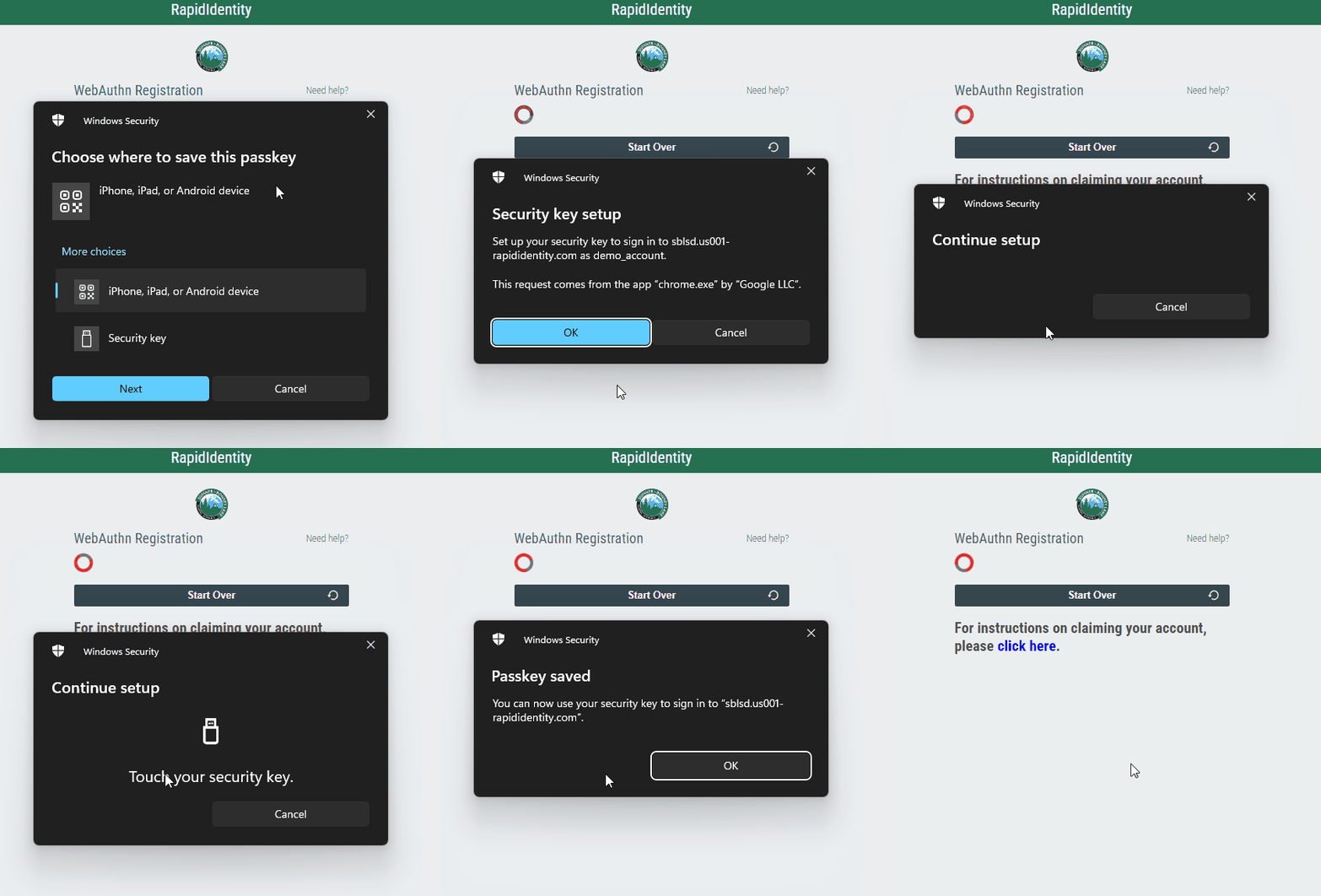
| **5**. Select the **Security Key** option on the *Choose where to save this passkey* prompt
**6**. Click the **Next** button
**7**. Click the **OK** button on the *Security key setup* prompt
**8**. Touch the button on your YubiKey
**9**. Click the **OK** button on the *Passkey saved* prompt
**10**. Success! Now you will be prompted to insert and tap your YubiKey when you log in to RapidIdentity
| [](https://wiki.sumnersd.org/uploads/images/gallery/2024-05/eTaIe9bin3V8SalM-wiki-mfa-webauthn-prompts.gif) |