# Managing Google Group Membership

### **Requirements**

---

- A Google account which is an existing member of the group with either the `Owner` or `Manager` role.

### **Accessing the Group Membership List**

---

**1**. Access Google Groups at [https://groups.google.com/](https://groups.google.com/)

**2**. Locate the group you want to manage and click the "**⚙**" (Group settings) button

<table border="1" id="bkmrk--1" style="border-collapse: collapse; width: 100%;"><tbody><tr><td style="width: 99.8765%;">[![image-1658872149518.png](https://wiki.sumnersd.org/uploads/images/gallery/2022-07/scaled-1680-/image-1658872149518.png)](https://wiki.sumnersd.org/uploads/images/gallery/2022-07/image-1658872149518.png)</td></tr></tbody></table>

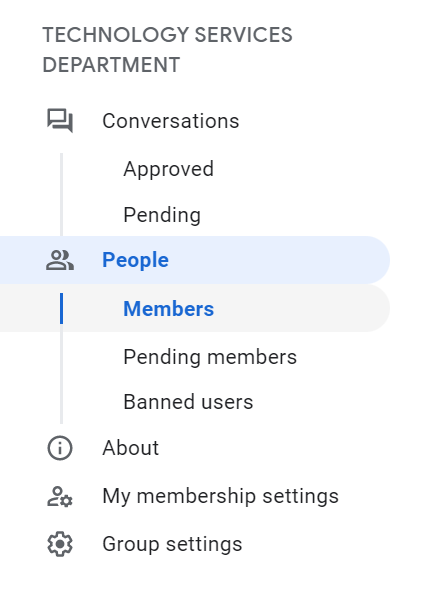
**3**. Select the **People** &gt; **Members** option from the menu on the left

<table border="1" id="bkmrk--2" style="border-collapse: collapse; width: 30%;"><tbody><tr><td style="width: 100%;">[![image-1658872327340.png](https://wiki.sumnersd.org/uploads/images/gallery/2022-07/scaled-1680-/image-1658872327340.png)](https://wiki.sumnersd.org/uploads/images/gallery/2022-07/image-1658872327340.png)</td></tr></tbody></table>

#### **Adding Members**

<details id="bkmrk-1.-click-the%C2%A0-button"><summary></summary>

**1**. Click the [![image-1658872516324.png](https://wiki.sumnersd.org/uploads/images/gallery/2022-07/scaled-1680-/image-1658872516324.png)](https://wiki.sumnersd.org/uploads/images/gallery/2022-07/image-1658872516324.png) button at the top of the page

**2**. In the pop-up window, search for users to add as members, manager, or owners. You can add multiple users to the group at the same time.

**3**. Click the **Add Members** button at the bottom of the pop-up window to finish.

</details>#### **Removing Members**  


<details id="bkmrk-1.-hover-over-the-pr"><summary></summary>

**1**. Hover over the profile icon of each user you intend to delete and select the checkbox that appears

**2**. Once one or more users are selected, select the "**⊝**" button near the top right of the page

<table border="1" style="border-collapse: collapse; width: 24.359%;"><tbody><tr><td style="width: 100%;">[![image-1658872840596.png](https://wiki.sumnersd.org/uploads/images/gallery/2022-07/scaled-1680-/image-1658872840596.png)](https://wiki.sumnersd.org/uploads/images/gallery/2022-07/image-1658872840596.png)</td></tr></tbody></table>

**3**. Click the **Ok** button in the pop-up window that appears

</details>#### **Editing Permissions for an Existing Member**

<details id="bkmrk-1.-hover-over-the-pr-0"><summary></summary>

<table border="1" style="border-collapse: collapse; width: 70.8369%; height: 262px;"><tbody><tr><td style="width: 100%;">[![managing-google-group-perms.gif](https://wiki.sumnersd.org/uploads/images/gallery/2023-08/9Jxv53SFGJuUp8V2-managing-google-group-perms.gif)](https://wiki.sumnersd.org/uploads/images/gallery/2023-08/9Jxv53SFGJuUp8V2-managing-google-group-perms.gif)</td></tr></tbody></table>

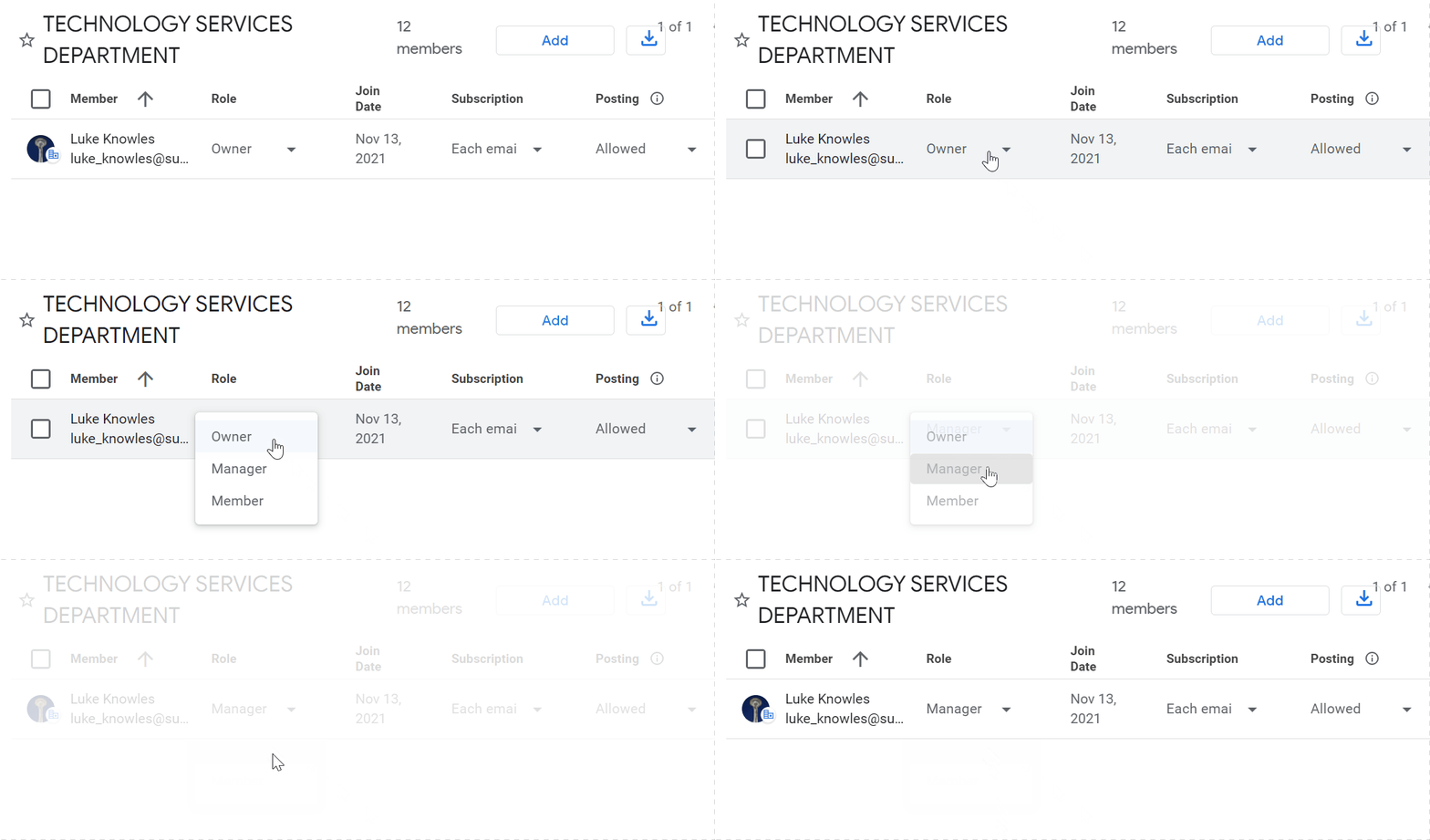
**1**. Click on the role dropdown of the user who you want to update permissions for

**2**. Select a new role for the user (*Owner, Manager, or Member*)

</details>---


### **Supplemental Documentation**

1. [https://support.google.com/groups/answer/2464975](https://support.google.com/groups/answer/2464975)
2. [https://support.google.com/groups/answer/2465464](https://support.google.com/groups/answer/2465464)